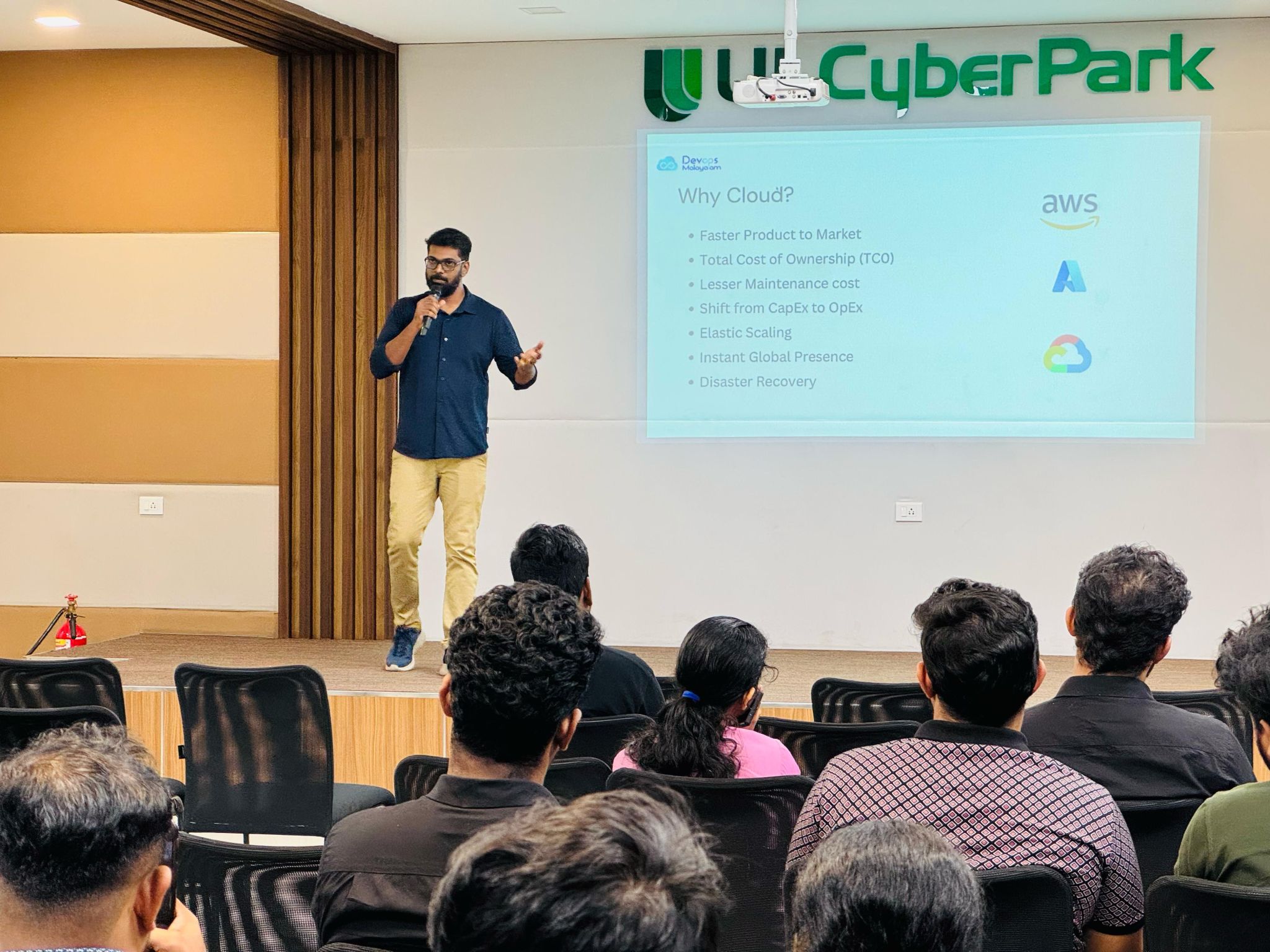
Topics Discussed
- Introduction – What Git is and why it is used
- Setting up Git (installation and authentication methods)
- Core Git workflow
- Essential Git commands
- Branching and merging strategies
- Stashing for temporary context switching
- Collaboration best practices
Introduction: Why Git?
Git is a Distributed Version Control System (DVCS) used to track changes in source code
during software development. It enables multiple developers to work on the same project
simultaneously while maintaining a complete history of changes.
Unlike centralized version control systems, Git allows every developer to maintain a full copy
of the repository and its entire history locally.
Key Advantages of Git
- Data Integrity – Every change in Git is stored using a cryptographic hash.
- Powerful Branching – Git allows developers to create lightweight branches instantly for isolated environments.
- High Performance – Most Git operations are performed locally, making it significantly faster.
- Collaboration – Git is the industry standard and integrates with platforms such as GitHub, GitLab, and Bitbucket.
Setting Up Git
Before using Git, you must install it and configure authentication.
Install Git
Linux:
sudo apt install gitmacOS:
brew install git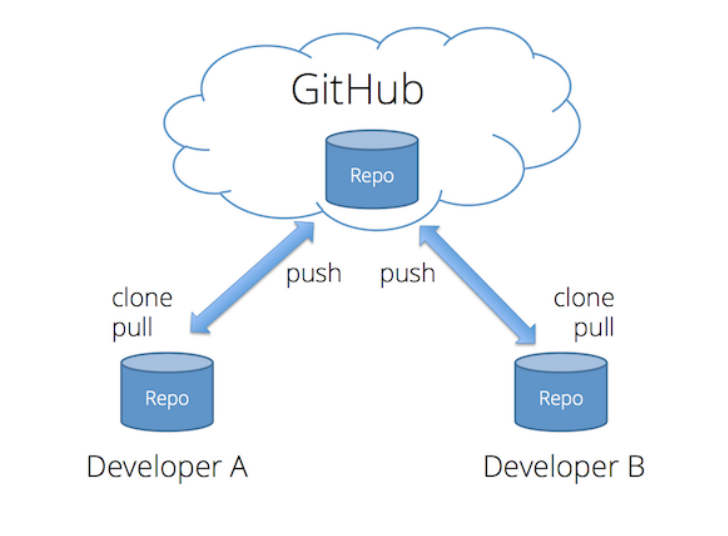
Windows:
Download installer from:
https://git-scm.com/downloads
Configure Git Identity
git config --global user.name "Your Name"
git config --global user.email "[email protected]"
git config --list
Authentication Methods
Modern Git platforms require secure authentication. While HTTPS with a Personal Access
Token is now the standard for many new users due to its ease of setup, SSH authentication
remains highly popular, particularly in enterprise environments.
Method 1: SSH Authentication
Generate an SSH key:
ssh-keygen -t ed25519 -C "[email protected]"Start SSH agent:
eval "$(ssh-agent -s)"
ssh-add ~/.ssh/id_ed25519
Copy the public key:
cat ~/.ssh/id_ed25519.pubTest connection (GitHub example):
ssh -T [email protected]Clone repository using SSH:
git clone [email protected]:user/repository.gitMethod 2: HTTPS with PAT
Clone repository using HTTPS:
git clone https://github.com/user/repository.gitMethod 3: Setting Up a PAT (Step-by-Step)
- Access Settings: Navigate to your user settings or profile menu.
- Developer Settings: Find “Developer settings” or “Access Tokens”.
- Generate Token: Click “Generate new token”.
- Set Scopes: Select required permissions (repo, write access).
- Copy Token Immediately: Store it securely.
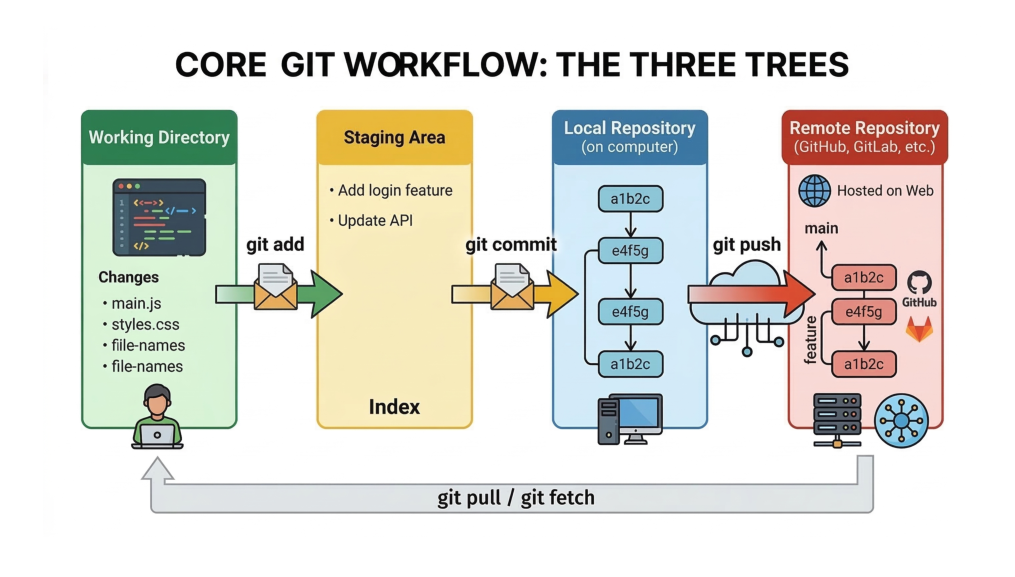
Core Git Workflow
- Working Directory – Files currently being edited.
- Staging Area – Temporary space where changes are prepared.
- Local Repository – Stores commits inside the .git directory.
- Remote Repository – Hosted repository (GitHub, GitLab).
Workflow Overview
Essential Git Commands
Repository Setup
| Command | Description |
|---|---|
| git init | Initialize a new Git repository |
| git clone <url> | Copy an existing repository |
Development Loop
| Command | Description |
|---|---|
| git status | Shows repository state |
| git add <file> | Stage changes |
| git commit -m “msg” | Save staged changes |
Collaboration Best Practices
- Atomic Commits: Each commit should be a single logical change.
- Pull Before Push: Always sync with the remote before uploading.
- Protect Main: Use Pull Requests for code review.